Mirrors High Account Transfer & Troubleshooting
Updated:
Mirrors High account transfer: the short version
- Link a BANDAI NAMCO ID before you need it. That link is how you move your save to another device. Official
- Switching between iOS and Android loses paid Mirror Gems, gem-pack rewards and Boost Mode (the monthly subscription), with no compensation. Official (Bandai Namco support FAQ)
- You can only transfer once every 24 hours, and one ID holds one save. Community
- If you’re rerolling, don’t link until you keep an account. Linking ties that save to your ID. See the reroll guide.
How to link your account
- In game, open Menu → Account Link (アカウント連携).
- Choose Set up transfer with BANDAI NAMCO ID and sign in (or create an ID).
- Confirm the link. Linking also completes a mission, so collect that reward. Community
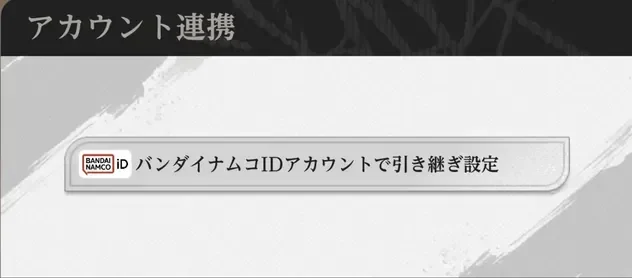
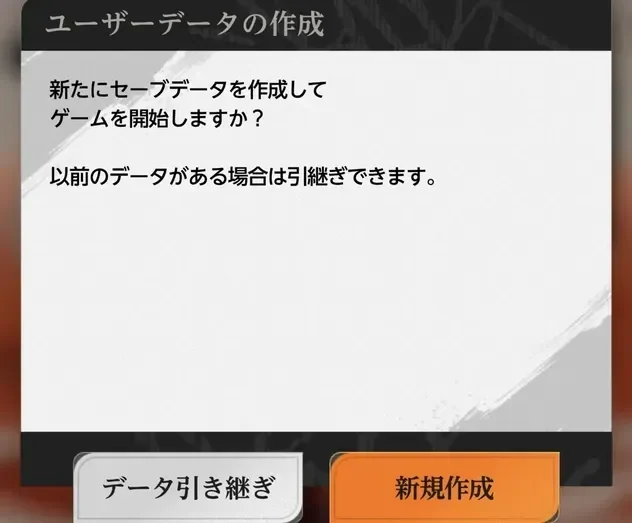
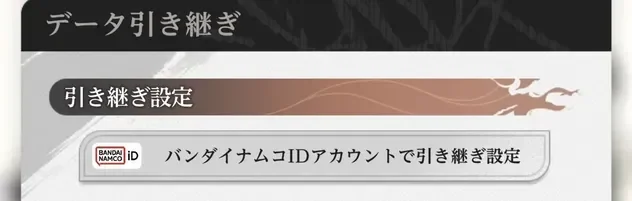
Menu labels come from a JP-client capture (Game8). The English client may word them differently, and we’ll update this once we’ve captured the EN screens.
How to move to a new device
- Install the game on the new device (download) and open it.
- On the title screen, choose Data Transfer (データ引き継ぎ).
- Sign in with the same BANDAI NAMCO ID.
- Check that your characters and gem count match before you delete anything on the old device.
| Rule | Status |
|---|---|
| Transfer works through a BANDAI NAMCO ID | Official |
| Paid gems, pack rewards and Boost Mode are lost across iOS ↔ Android | Official |
| Free gems carry across OS | Community (inferred from the FAQ listing only paid items) |
| 24-hour cooldown between transfers | Community |
| One save per ID | Community |
| Transfer between the JP and global clients | Unknown — assume no |
Before switching OS: spend your paid gems first, and let Boost Mode run out rather than renewing it.
Crashes, freezes and long loading
The official CBT report lists crashes and long loading as known issues. The fix plan was rendering adjustments plus automatic recommended graphics settings. Official. Until those land, try these general steps in order:
- Lower the graphics quality in Settings and close other apps.
- Restart the device and switch between Wi-Fi and mobile data.
- Check you have enough free storage for in-game downloads.
- Update the game and your OS.
- Before reinstalling, make sure your account is linked. Otherwise a reinstall can wipe an unlinked save.
Steps 1–4 are general mobile troubleshooting, not official instructions for this game.
Lost account or failed transfer
Contact Bandai Namco support through the official FAQ/inquiry page (support FAQ). Have your player ID, device and OS, and an approximate purchase history ready. This wiki can’t recover accounts. For problems with this site, use our contact page.